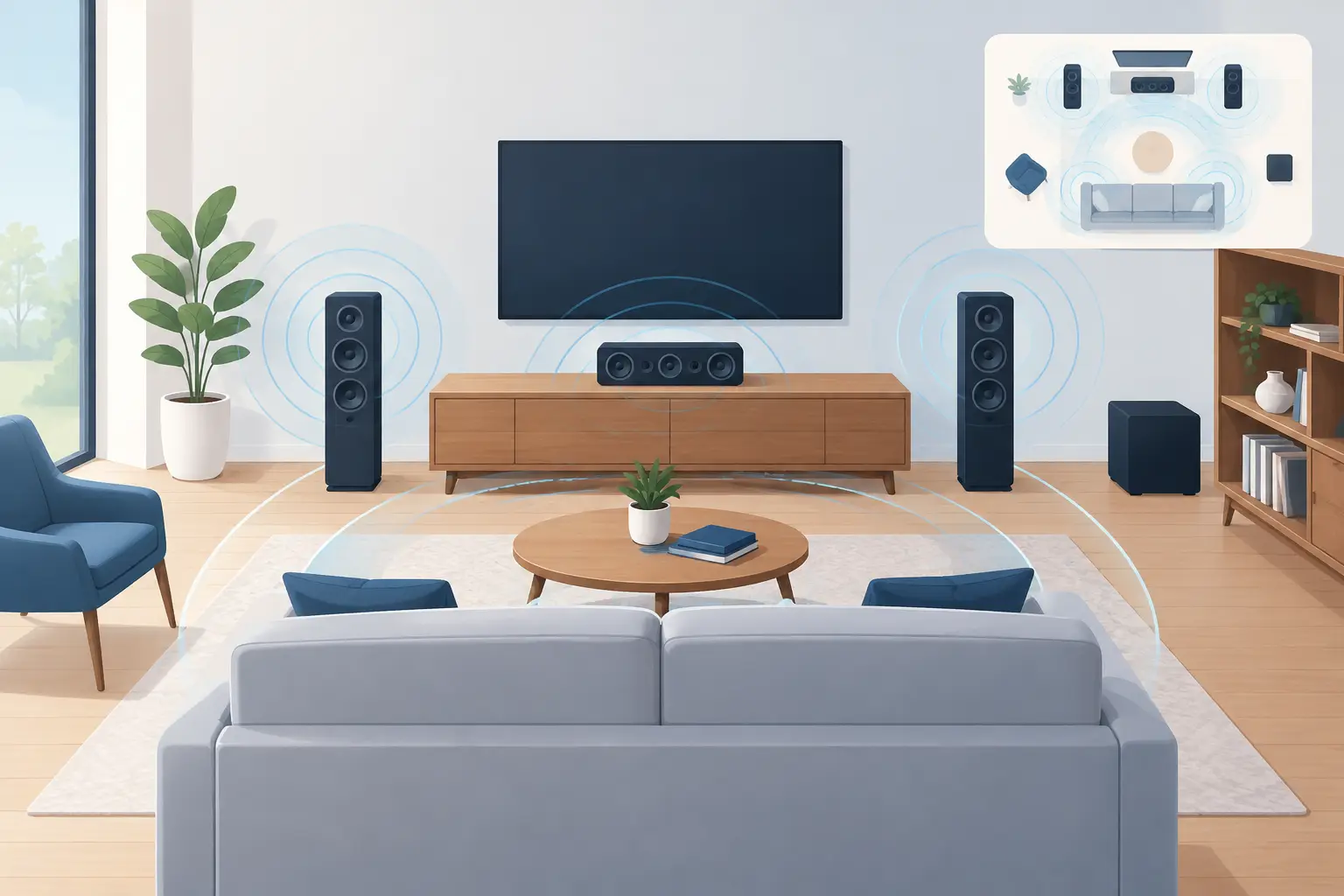
A phone on a coffee table, an old tablet on a shelf, and a laptop near the TV can sound like clutter - or like a room-wide system. The best device layouts for room audio do not start with buying more speakers. They start with placing the devices you already own where each one can do a specific job.
A good layout makes sound feel wider, clearer, and more intentional. A bad one creates competing vocals, thin bass, and obvious timing problems. Start with the room, identify where people will listen, then assign each device a role. Do not place every device near the same wall and expect a larger soundstage.
Best Device Layouts for Room Audio: Start With the Listening Zone
Before assigning left, right, center, or bass roles, choose the listening zone. In a bedroom, it may be the bed or desk chair. In a living room, it may be the center of the couch. At a party, it is usually the open area where people gather rather than one fixed seat.
Place the strongest-sounding devices closest to the main listening zone. Larger tablets and laptops often produce fuller mids than small phones, so they are better candidates for center content or the main left and right channels. Use phones to extend the soundstage, fill an empty corner, or add an effect channel.
Keep device height in mind. Sound aimed at knee level gets absorbed by furniture and people. Raise phones with a stand, a stable stack of books, or a shelf so their speakers are closer to ear height. Do not block bottom-firing speakers with fabric or place a device inside a cabinet. The room is part of the system, and every surface changes what you hear.
Layout 1: The Stereo Triangle for Focused Listening
Use this layout for movie nights, gaming, focused music sessions, or a desk setup. Place one device on the left and one on the right, both facing the main seat. Aim for a wide triangle: the distance between the devices should be close to the distance from each device to the listener.
For example, if your listening position is six feet from the TV wall, place the left and right devices roughly five to seven feet apart. Avoid pushing them into the farthest corners immediately. Corners can make low frequencies feel louder, but they can also make small speakers sound muddy.
A tablet and laptop make a strong front pair. Two similar phones can work as well, especially when they are placed symmetrically and set to similar volume levels. Keep the left and right channels balanced first. If one side is louder, listeners will hear the whole mix pulled toward that device.
This is the simplest layout, but it depends on a defined listening position. Move far to one side of the room and the stereo image will shift. That is normal. Use it when the sound should serve a couch, chair, bed, or desk rather than a moving crowd.
Layout 2: Left, Center, Right for Dialogue and Detail
If you have three capable devices, add a center channel. Put the center device directly below or above the screen, or centered on the wall opposite the main seating area. Assign dialogue-heavy material and vocal presence to this location when your setup allows channel control.
The left and right devices should sit wider than the center device. The center does not need to be louder. Its job is to anchor speech and lead vocals so they do not seem to float between two distant speakers.
This layout is especially useful when several people sit across a wide couch. A pure stereo setup can leave people at the edges hearing mostly one channel. A center device gives the front of the room a more stable image. Use a laptop or tablet for the center if possible, since speech needs clean midrange more than extra volume.
Keep the center channel modest. Too much center level collapses the width created by the left and right channels. Raise it only until dialogue stays clear at normal listening volume.
Use the Room Shape to Choose a Layout
Square rooms, long rooms, and open-plan rooms need different placement. Copying a diagram without looking at your furniture usually leads to weak results.
Layout 3: Front Stage Plus Rear Fill
For a larger living room or a casual movie session, build a front stage with two or three devices and place one or two smaller devices behind the seating area. Rear devices should be quieter than the front pair. Their role is space, not distraction.
Place rear devices slightly behind the couch, on side tables or shelves, and point them inward. If they sit directly beside someone’s head, reduce their output. Close speakers can feel much louder than devices across the room, even when their volume settings look identical.
Use rear fill for ambient music, game effects, or virtual surround processing. It is less useful for podcasts, acoustic tracks, and other content where a stable voice matters more than immersion. If the room has hard floors and bare walls, start even lower than you think. Reflections can make rear content feel more aggressive than it is.
Layout 4: Perimeter Sound for Parties and Open Rooms
A party layout is not a surround system. People move, talk, and stand in groups, so there is no single sweet spot to protect. Spread devices around the usable perimeter of the room instead of concentrating them at one end.
Place one device near the main social area, one at the opposite side, and others along the sides where sound drops off. Keep walkways clear and place devices on stable surfaces away from drinks. A phone on the floor may add volume, but it is easy to kick and its sound will be absorbed by rugs.
In this layout, consistency matters more than sharp stereo separation. Use similar volume ranges across devices. If one tablet is much louder than everything else, guests will cluster around it and the room will feel uneven. A little overlap between zones is useful, but excessive overlap can make vocals sound smeared.
For bass, do not expect a phone to replace a subwoofer. If a device has stronger low-end output, place it near a wall or close to a corner, then use virtual bass carefully. Too much enhancement creates rattling before it creates impact.
Layout 5: Desktop Nearfield for Creators and Gamers
At a desk, distance is limited, which is an advantage. Put the left and right devices just outside the monitor edges and angle them toward your head. Keep them at equal distances from your seat. A third device can sit below the monitor as a center channel, but only add it if it improves clarity rather than crowding your workspace.
Nearfield layouts reveal timing differences quickly. Start with synchronization settings before adding reverb, virtual surround, or bass effects. If a snare hit sounds doubled or a voice feels detached from the screen, fix timing first. Effects cannot repair misalignment.
This is also a useful layout for testing device roles. Compare a phone, tablet, and laptop in the same position. You may find that the tablet works best for center detail while the laptop delivers more convincing left or right presence.
Assign Roles Instead of Duplicating Every Device
More devices do not automatically mean better room audio. Each added device introduces a placement decision, a volume decision, and a synchronization requirement. Start with two devices, confirm the image, then add one role at a time.
A practical role order is front left and front right first, center second, then rear fill or low-end support. This sequence keeps the primary sound intact. It also makes troubleshooting faster: if clarity drops after adding a device, you know exactly which role to adjust.
With MUSIXQUARE, start a session, have each device join by QR code, and rename devices based on their position before assigning channels. Names such as “Front Left Tablet,” “Center Laptop,” and “Rear Right Phone” prevent confusion once several screens are active. Set the host device where you can reach it without crossing the room.
Tune After Placement, Not Before
Do not tune devices while they are stacked on a table. Place them in their final positions, sit or stand where you expect to listen, and adjust from there. Small changes matter. Moving a phone one foot away from a wall can reduce boominess. Raising a tablet can make voices clearer.
Start with all processing disabled or set conservatively. Match perceived loudness rather than trusting each device’s volume percentage. A laptop at 40 percent may be louder than a phone at 80 percent.
Then make controlled changes. Use frequency adjustment to reduce harshness or mud, not to force tiny speakers into doing what they cannot do. Add warmth when the room feels thin. Add clarity when speech gets lost. Use reverb lightly because it can make a small room feel larger, but it can also blur rhythm and dialogue.
Finally, test with the content you will actually play. A bass-heavy playlist, a dialogue scene, and a live recording expose different problems. If the layout works only for one song, it is not finished.
The most useful room audio setup is the one you can rebuild in minutes. Keep devices charged, save the positions that work, and let the room tell you where the next channel belongs.