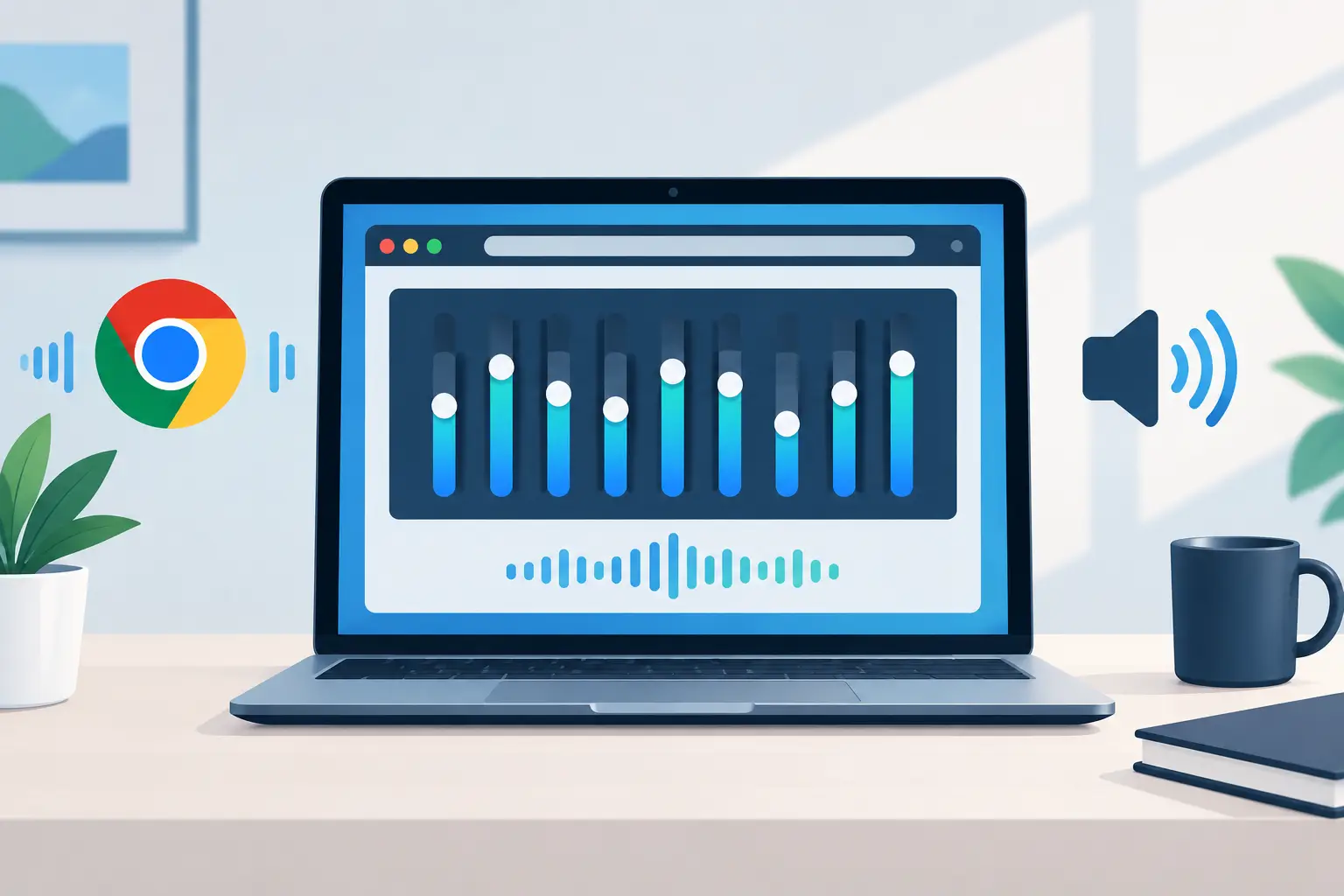
A browser equalizer review guide should begin with a real question: can this tool improve the speakers you already own, or does it only make the interface look more technical? The answer depends on how much control it gives you over frequency, timing, and output devices - and whether those controls remain useful once music starts playing.
For a laptop-and-headphones setup, a simple EQ may be enough. For a room with phones, tablets, and desktop speakers, the standard is higher. You need sound shaping, but you also need stable synchronization, clear device roles, and controls that do not require an audio engineering degree to use.
What a Browser Equalizer Should Actually Do
A browser equalizer changes the balance of frequencies in audio played through a web experience. In practical terms, it lets you reduce muddy low mids, bring vocals forward, soften harsh treble, or add weight where small speakers feel thin.
That definition is useful, but it is incomplete. A good browser-based audio tool should make adjustments audible without making them confusing. It should show which device is active, preserve settings during a session, and avoid adding delay that makes video, games, or multi-device playback feel disconnected.
The first review test is simple: make one controlled adjustment at a time. Lower the low-frequency range slightly, then play a familiar track. Raise the vocal presence range, then switch it off again. If the difference is hard to identify, the app may be applying broad changes with limited precision, or the device speaker may be the limiting factor.
Do not judge an equalizer by the number of sliders alone. More bands can provide finer control, but only if the interface labels them clearly and changes are easy to reverse. A 10-band EQ with sensible ranges and a reset button is often more useful than a dense parametric panel built for studio work.
Review Frequency Controls Before You Touch Presets
Frequency bands are where an equalizer earns its place. Most listeners do not need to memorize every Hz value, but they should know what each area changes.
Sub-bass and bass affect impact. On a phone or tablet, pushing these ranges too far usually creates distortion rather than deeper bass. Lower mids affect warmth and body, but too much can make podcasts, guitars, and vocals sound boxed in. Midrange is where much of the musical detail lives. Upper mids improve clarity and vocal presence, although aggressive boosts can become tiring. Treble adds brightness and definition, while excessive treble exposes hiss and makes cymbals sharp.
Test frequency control at moderate volume first. Small device speakers have physical limits, and maximum-volume testing can hide whether the EQ is helping or simply forcing the speaker into distortion. If you want stronger low end, reduce competing muddy frequencies before adding a large bass boost.
A review should also check whether the controls affect every connected output in the same way. The same setting that improves a laptop speaker can sound overbright on a tablet or thin on a compact Bluetooth speaker. Device-specific tuning is more valuable than one global curve when multiple devices are active.
Presets Should Be Starting Points, Not Permanent Modes
Presets such as Bass Boost, Vocal, Movie, or Warm can help users move quickly, especially when they are setting up a room with friends waiting. But a preset is not a verdict on what sounds best.
Review how transparent those presets are. Can you see which bands changed? Can you adjust the preset afterward? Does selecting a new preset overwrite your custom setting without warning? A useful browser equalizer lets you start with a preset, refine it for the room, then return to neutral when needed.
For example, a speech-focused session may need slightly less bass and more vocal presence. A party playlist may benefit from a modest bass lift on the device closest to the listening area, not across every phone in the room. The best preset is the one that supports the actual source and space.
Latency Is the Feature That Decides Whether It Feels Usable
Equalization changes tone. Latency determines whether the system feels coherent.
When audio plays through one device, a small delay may not be noticeable. Once several devices are playing together, timing becomes the main test. If one phone delivers a beat a fraction late, the room stops sounding wide and starts sounding like an echo. This is especially obvious with drums, clapping, dialogue, and video.
A strong web audio platform should expose synchronization controls rather than hiding them. Look for device delay adjustment, a way to identify which device is leading or lagging, and a quick method to verify playback after changes. These are not niche settings when you are building a multi-device sound field. They are the difference between a useful room setup and a collection of unrelated speakers.
Test timing with a track that has clear percussion. Place two devices several feet apart and listen from the middle. Then walk closer to each device. If the transient hits feel doubled, adjust delay before changing the EQ. Tone cannot fix timing.
Browser performance also matters. A phone with many background tabs, low battery mode, or unstable Wi-Fi can behave differently from a plugged-in laptop. Review the system under realistic conditions: lock and unlock a guest device, move one device farther from the router, and see whether it reconnects cleanly. A feature is only practical if it survives normal use.
Evaluate Multi-Device Audio as a System
The most interesting browser equalizers go beyond one output. They treat your existing devices as parts of a configurable audio system.
That changes the review criteria. Instead of asking only, “Does the bass sound better?” ask, “Can I assign each device a clear job?” One phone can handle the left channel, a tablet can cover the right channel, a laptop can anchor the center, and another device can carry a bass-focused role. The result will not replace calibrated home theater hardware, but it can create a more involving space from equipment you already own.
MUSIXQUARE is designed around this practical idea: start a session, let other devices join by QR code, then configure their roles and sound controls from the browser. The value is not just playing louder. It is turning dormant screens and speakers into an adjustable audio layout without requiring a proprietary speaker ecosystem.
When reviewing any multi-device platform, check the host and guest flow carefully. Can the host limit connected devices? Is there a room password when the session is not public? Can guests join quickly without account friction? Are device names easy to change so you can identify “kitchen tablet” versus “desk phone”? These details matter when five people arrive with similar-looking phones.
Channel Assignment Needs a Purpose
Channel assignment is useful only when it reflects the room. Start by placing left and right devices at a reasonable distance, facing the listening area. Add a center device when dialogue or lead vocals need a fixed point. Use a bass role cautiously, because tiny phone speakers cannot produce true sub-bass no matter what the label says.
Virtual surround and virtual bass features can increase perceived width or weight, but they come with trade-offs. Virtual processing can make a narrow setup feel larger, while also reducing the natural focus of voices or adding artifacts to busy tracks. Compare the effect with the feature off. If the room sounds more exciting but less clear, use a lighter setting.
Check the Controls That Protect Sound Quality
An equalizer is only one layer of sound tuning. Review whether the platform includes useful controls for clarity, warmth, reverb, enhancement, and visualization - then ask whether each one is adjustable enough to be intentional.
Clarity controls can help with speech and detail, but they may push upper frequencies too hard on bright speakers. Warmth can reduce a sterile sound, but too much often creates a blanket-over-the-speaker effect. Reverb may add atmosphere for a creative listening session, yet it can make podcasts and voice content harder to understand. Use these controls as small corrections, not permanent effects.
Visualizers are not sound-quality tools, but they can still serve a purpose at a party or small event. Treat them as optional display feedback. The priority remains stable playback, correct device routing, and clear controls.
A good review also checks reset behavior. You should be able to return one device or the whole session to a neutral sound quickly. Experimental tuning is useful only when it is reversible.
A Fast Test Before You Commit
Set up a short test session before relying on any browser equalizer for a gathering, class project, or content session. Use two or three devices, not just one. Start with the EQ flat, play a familiar song, and verify that every device is connected and correctly named. Assign left and right roles, then use percussion to adjust sync.
After timing is stable, make small frequency changes. Test a vocal track, a bass-heavy track, and spoken audio. Switch virtual processing on and off. Finally, have one guest join through the normal flow. This reveals whether the experience is built for real participants or only for a single person testing alone.
The right setup will not make every device sound identical. It will make each device useful in the larger room. Start the session, place devices with intention, tune lightly, and let the space do more of the work.