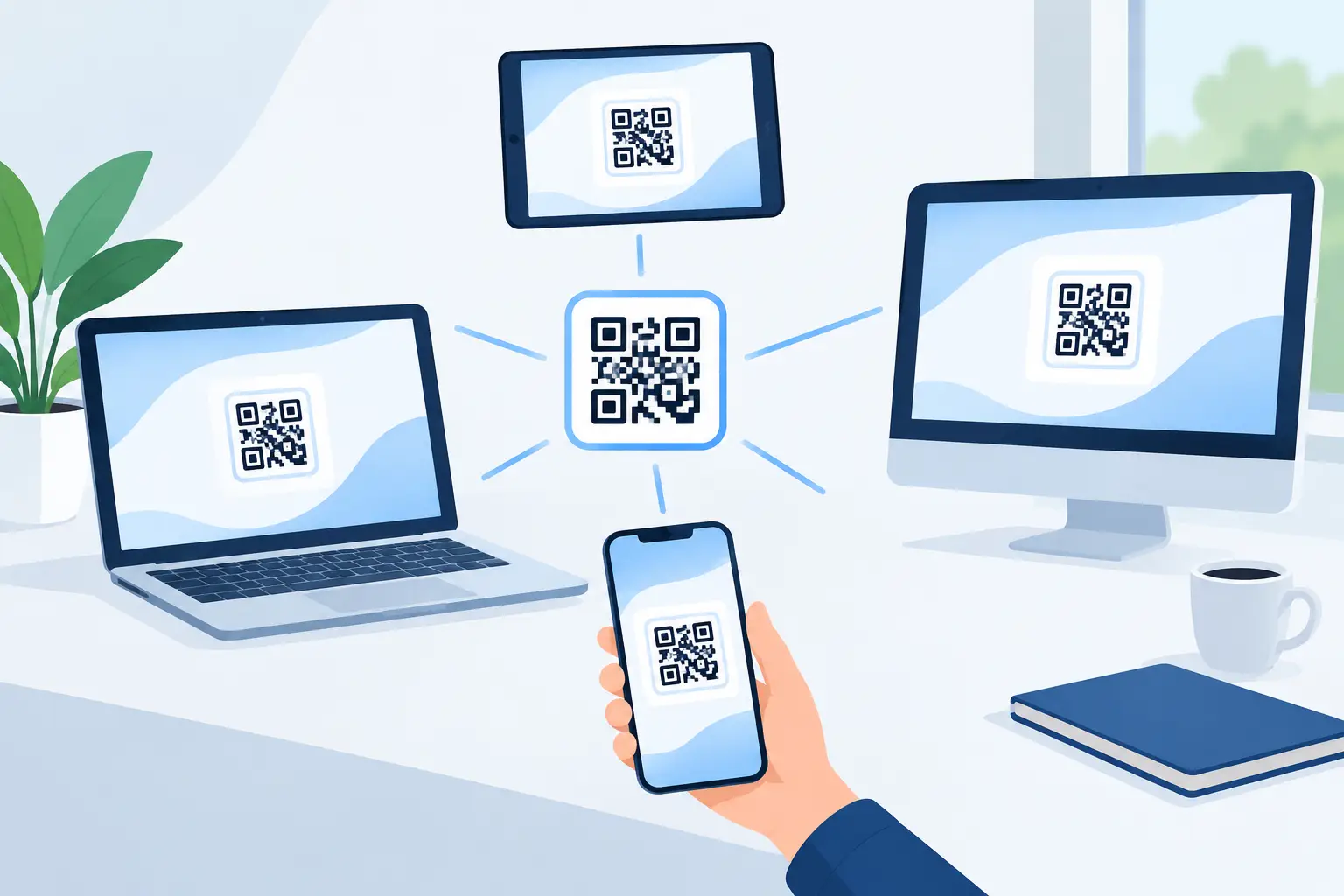
A QR code on a party table should not send guests to an app store, request an install, and split the room into people who joined and people who gave up. Can QR sessions work without apps? Yes, when the QR code opens a browser-based session instead of acting as a download shortcut.
That difference changes the whole setup. A guest scans, their browser opens the session page, and they join from the device already in their hand. For shared audio, collaborative playback, classroom demos, or a small creative event, that is the shortest path from invitation to participation.
Can QR Sessions Work Without Apps? The Short Answer
A QR code does not create a session by itself. It stores information, usually a web address. Whether an app is required depends on where that address leads.
If the QR code opens an app-store page or uses a proprietary deep link, participants may need to install software before they can continue. If it opens a web session built for modern mobile and desktop browsers, there is no separate app installation step. The browser becomes the access point.
For users, the flow can be as direct as this: scan the code, open the session, enter a room password if one is set, allow audio when prompted, and connect. The host can then see the device in the room and assign its role in the sound setup.
This is especially useful when the group is mixed. One person has an iPhone, another uses an Android phone, someone brings a tablet, and the host has a laptop. Requiring every participant to find, download, and configure the same app creates friction before the experience even starts. A browser-first QR session reduces that friction without asking everyone to abandon the devices they already use.
What “Without an App” Actually Means
App-free does not mean software-free. A browser is still software, and the session still relies on web audio features, network connections, and device permissions. The point is that users do not need to install a dedicated application for one session.
This distinction matters because the browser handles several jobs at once. It loads the session interface, receives timing information, plays audio, and sends connection status back to the host. A well-designed web session can expose practical controls such as device name, volume, channel assignment, delay adjustment, and room access without turning setup into an installation project.
There is also a practical limit: a device needs a reasonably current browser and enough processing power to play audio reliably. An old phone with a damaged speaker will not become a high-fidelity channel simply because it scanned a code. Browser access removes an unnecessary barrier, but it does not erase hardware limits.
How an App-Free QR Audio Session Works
The QR code is the entry point. The session architecture does the real work after the scan.
1. The host starts the room
The host creates a session in a browser and receives a QR code for that room. The room can be open for fast access or protected with a password when the group needs more control.
For a living room setup, the host might place a laptop near the main display, then use phones and tablets as extra audio endpoints around the space. For a small event, the host can display the QR code on a screen so each participant joins from their own device.
2. Guests scan and enter through the browser
Most current phone cameras recognize QR codes directly. The guest taps the notification, which opens the session in their default browser. On a tablet or laptop, the same session can be opened by scanning with a camera or entering the room address manually.
The browser may ask for permission to play sound or may require the guest to tap a Join or Start Audio button. That interaction is normal. Mobile operating systems often prevent a webpage from starting audible media automatically, which protects users from unwanted sound. A single tap is usually enough to activate playback.
3. Each device becomes an audio endpoint
Once connected, a device is more than an attendee marker. It can become part of the room's speaker layout. Place one phone on the left, a tablet on the right, and a laptop in the center. Depending on the session controls, those devices can be configured for left, right, center, bass, or custom channel behavior.
MUSIXQUARE uses this browser-based model to turn existing phones, tablets, and desktops into a synchronized wireless audio system. The practical advantage is not just that people can join quickly. It is that the devices already in the room can be organized as useful parts of a larger sound field.
4. The host checks sync and balance
A multi-device setup needs more than a successful connection. Devices have different speakers, processing speeds, and network conditions. The host should listen, adjust, and verify the layout before pressing play for the whole room.
Use device-level volume first. Then make timing and sound adjustments from the session controls. If a phone sounds thin, it may work better as an ambient or rear channel than as the main channel. If a tablet has stronger output, place it where it can carry more of the mix.
The Conditions That Make It Work Well
App-free QR sessions are fast, but they work best when the environment is prepared. Think of the QR code as the door, not the entire venue.
A stable shared Wi-Fi network is the first requirement. If participants are spread across weak cellular connections, timing can vary and devices may drop out. For a group audio setup, connect devices to the same reliable network before joining the room. Avoid crowded guest networks when you need tight synchronization.
Keep the session open in the browser. Some phones limit background activity to save battery, and a device may pause or lose responsiveness when its screen locks. For an important playback moment, plug in devices when possible, disable aggressive battery-saving modes, and keep the browser session active.
Physical placement matters as much as connection quality. Phone speakers are directional and small. Do not hide every device under cushions or place them all on one shelf. Spread them around the listening area, angle them toward listeners, and leave space between channels. A modest set of well-placed devices can create more dimensional sound than a larger cluster playing from one corner.
Where App-Free Sessions Have Trade-Offs
Browser access is excellent for low-friction participation, but it is not the right answer to every audio problem.
First, browser behavior differs slightly by device and operating system. One guest may need to tap Play after joining. Another may need to raise media volume instead of ringtone volume. A laptop may route audio to headphones or an external display without the user realizing it. These are manageable issues, but the host should expect a brief sound check.
Second, wireless synchronization has real constraints. A browser-based system can coordinate timing, but it cannot override an unstable router, a device with overloaded processing, or a participant walking out of Wi-Fi range. For casual listening, a little variation may be acceptable. For a tightly timed performance, video shoot, or critical monitoring task, test the exact network and device mix in advance.
Third, session access should match the setting. A public QR code is convenient at an open event, but it also makes joining easy for anyone who can see it. Use room passwords, participant limits, and host controls when the session is private or when too many connected devices would reduce performance.
Set Up an App-Free QR Session That People Can Actually Use
Start with the listening goal, not the number of devices. If you want a wider stereo image, two well-positioned devices may be enough. If you want a more immersive layout, add a center device and supporting channels around the room. More devices can expand the sound field, but every additional endpoint should have a purpose.
Create the session before guests arrive. Confirm that the QR code is visible at a reasonable size, test it with at least one phone, and give the room a clear name. If a password is needed, display it near the code or share it separately. Do not make guests guess which network to use or which browser tab is the right one.
After devices connect, rename them based on location. Names like “Left Sofa,” “Desk Center,” and “Back Right” are more useful than a row of default phone names. Then adjust channel roles, volume, delay, and available sound settings. Reverb, frequency-band adjustments, clarity, warmth, virtual surround, virtual bass, and enhancement controls are useful when they support the room, not when they are added just because they exist.
Finally, run a short test track. Walk through the space. Listen for one device arriving late, a channel that is too loud, or a speaker pointed away from the audience. Fix those details before the room fills up.
The best app-free QR session feels almost invisible: scan the code, join the room, place the device, and hear it become part of the system. Keep the setup simple enough for guests to enter quickly, then use the host controls to make the sound intentional.