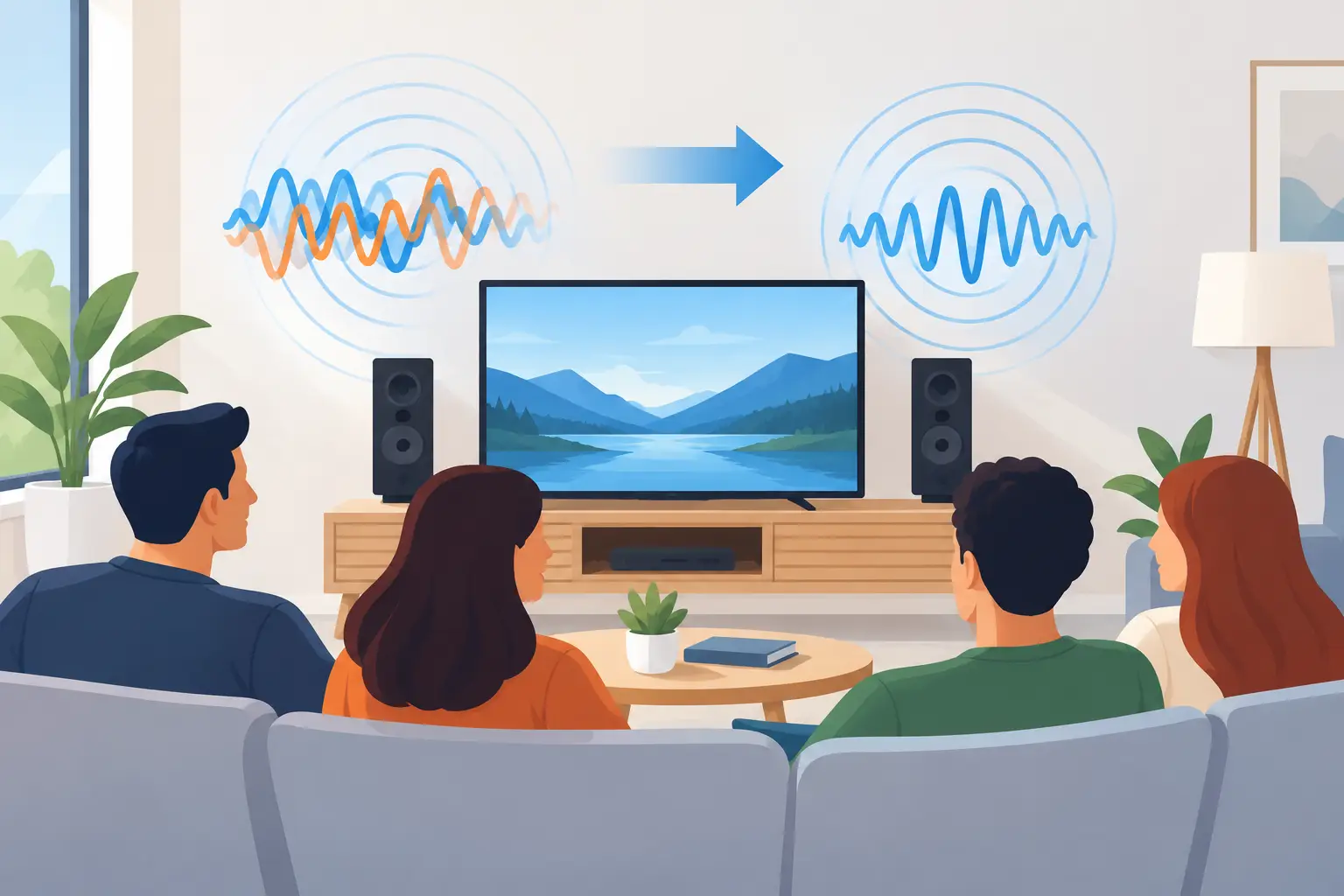
A group playback setup can sound huge for about three seconds, then suddenly feel like every vocal has a duplicate standing two feet behind it. To fix echo in group playback, first identify whether you are hearing normal room reflections, timing mismatch between devices, or microphone feedback. They sound similar at first. The fix is different for each one.
The good news: you usually do not need new speakers. A phone, tablet, or laptop can become part of a clean multi-device system when placement, output level, and sync settings are handled in the right order. Start with the room and the signal path. Do not start by maxing out volume.
Why Group Playback Creates Echo
When multiple devices play the same track, each speaker reaches your ears at a slightly different time. A difference of only a few milliseconds can soften the sound. A larger difference creates a distinct repeat, commonly heard as echo. At 20 to 40 milliseconds apart, drums lose impact and vocals begin to sound doubled. Beyond that, the delay becomes obvious.
Wi-Fi conditions, device processing, browser behavior, Bluetooth routing, and audio enhancement features can all add timing variation. Even two devices sitting side by side may not output sound at precisely the same moment without synchronization controls.
The room adds another layer. Hard walls, windows, bare floors, and tabletops reflect sound. If you hear a short repeat even when only one device is playing, that is acoustic reflection, not a playback sync problem. Turning down a second device will not solve it.
There is also feedback. This happens when a microphone picks up audio from a nearby speaker and sends it back into the system. Feedback may sound like a repeating loop, a hollow echo, or a rising squeal. Treat it as a microphone-routing issue immediately.
Fix Echo in Group Playback: Use This Order
Work through one variable at a time. Changing placement, volume, and sync together makes it hard to know what actually solved the problem.
1. Test one device first
Pause every device except the host or main speaker. Play a familiar track with a dry vocal, handclaps, or a tight kick drum. These sounds reveal delays more clearly than ambient music.
Walk around the room. If the single device already sounds roomy or reflective, move it away from corners, glass, and large hard surfaces. Place it on a stable surface rather than inside a shelf or cabinet. A rug, curtains, couch, or even a few people in the room can reduce harsh reflections.
This step gives you a baseline. You need to know what the room is doing before you judge what the network is doing.
2. Add devices one at a time
Bring in one guest device, then listen from the main seating or standing area. Do not judge timing while your ear is directly beside one speaker. At close range, any distributed setup can seem uneven because one device is physically much nearer than the others.
Use the same short section of a track each time. If vocals suddenly double or claps sound like two separate hits, that new device is early or late. Adjust its playback delay or synchronization offset before adding another device.
Repeat the process device by device. It takes a few extra minutes, but it prevents a five-device session from turning into a guessing game.
3. Set one device as the timing reference
Choose the device closest to the main listening position as your reference. In a small living room, that may be the center phone or tablet. In a wider space, it may be a laptop running the main output.
Keep that reference device fixed. Make timing adjustments on the other devices, not all of them. If every device is moved back and forth, you lose the center point that keeps the session organized.
With a browser-based synchronized system such as MUSIXQUARE, join all devices to the same session, then use its delay and synchronization controls to align each output. Make small changes, listen again, and save the setting only when the transient sounds lock together. A few milliseconds matter, so avoid large jumps unless the delay is clearly audible.
4. Remove unnecessary audio paths
A common cause of delayed playback is routing one device through Bluetooth while others play through their built-in speakers. Bluetooth adds latency that can vary by device, codec, and connection quality. It can work, but it should not be your first choice for a tightly synchronized room.
For the cleanest result, use comparable output paths across devices. Built-in speakers on several phones and tablets are often easier to align than a mix of Bluetooth speakers, wired headphones, and laptop audio. If you must use Bluetooth, make that device a less critical channel, such as rear ambience or a low-level side fill, rather than the main center output.
Also disable duplicate output. A laptop may be sending audio to its speakers, a connected monitor, and a paired Bluetooth device at the same time. Close extra browser tabs and media apps that may be playing the same source independently.
Place Devices Like a System, Not a Pile of Speakers
Perfect sync cannot fully overcome poor placement. If two devices play the same full-range signal from opposite sides of a small room, listeners near either device may still hear a natural arrival-time difference. That is physics, not a software failure.
Start by creating zones. Put the primary left and right devices in front of the main listening area, separated enough to create width but not so far apart that the middle disappears. Place a center device near the screen, table, or front wall if dialogue and vocals need focus. Use extra phones behind or beside listeners at lower volume for atmosphere, not as equally loud duplicates of the front channels.
Avoid facing speakers directly at each other. That increases reflections and can make the room sound phasey. Keep devices out of corners when possible, and do not place a phone flat on a resonant tabletop if it makes the low mids boom. A small stand, book, or folded cloth can change the result more than expected.
For a party, wide coverage may matter more than an audiophile sweet spot. In that case, use more devices at moderate volume instead of two devices pushed to maximum. Lower output reduces distortion, room bounce, and the urge for guests to move one speaker into a bad location.
Check for Microphone Feedback and Double Capture
If the echo gets worse when someone opens a voice chat, records video, or enables a microphone, stop adjusting sync. You are probably dealing with feedback or double capture.
Mute microphones on devices that are only meant to play audio. If one phone is hosting a call or announcement, keep it physically separated from the nearest speaker and lower that speaker first. Use headphones for the person speaking when the session requires two-way communication.
Be careful with video conferencing, social apps, and browser permissions. A device can capture room sound even when you think it is only serving as a speaker. Close communication apps, check microphone permissions, and make sure only the intended input is active. Echo cancellation can help in calls, but it may alter music playback, so use it only where voice communication is the goal.
Tune Volume Before You Reach for Effects
A harsh, smeared room is often blamed on echo when the real issue is level. One phone may be much louder, brighter, or bass-heavier than the others. That device dominates the room, while the delayed devices remain audible enough to create a shadow around the sound.
Match loudness by ear from the listening area. Start all devices lower than you think you need, then raise the reference device to a comfortable level. Bring in the other outputs until they support it without drawing attention to themselves.
Use equalization with a clear purpose. If a device sounds piercing, reduce its upper mids or treble slightly rather than turning it down so far that it stops contributing. If a small phone is rattling on bass notes, reduce low frequencies and let larger devices handle the weight. Virtual surround, reverb, and bass enhancement can be useful after timing is stable. Before that point, they can hide the real problem.
When a Little Echo Is Actually Useful
Not every delay is bad. A controlled, quiet delayed device can make a larger room feel more spacious, especially for ambient music, movie effects, or a party setup where people are spread out. The rule is simple: make the delay intentional and keep the delayed channel lower than the main signal.
For focused listening, dialogue, DJ transitions, or rhythm-heavy tracks, prioritize tight alignment. For creative installations or relaxed background playback, a small amount of spread may be part of the sound design. Decide which experience you want before you tune.
When the system feels wrong, return to the reference device, mute the rest, and rebuild the session one device at a time. That reset is faster than chasing an echo across the room. A good group playback setup is not about making every device loud. It is about giving every device a clear job in the space.