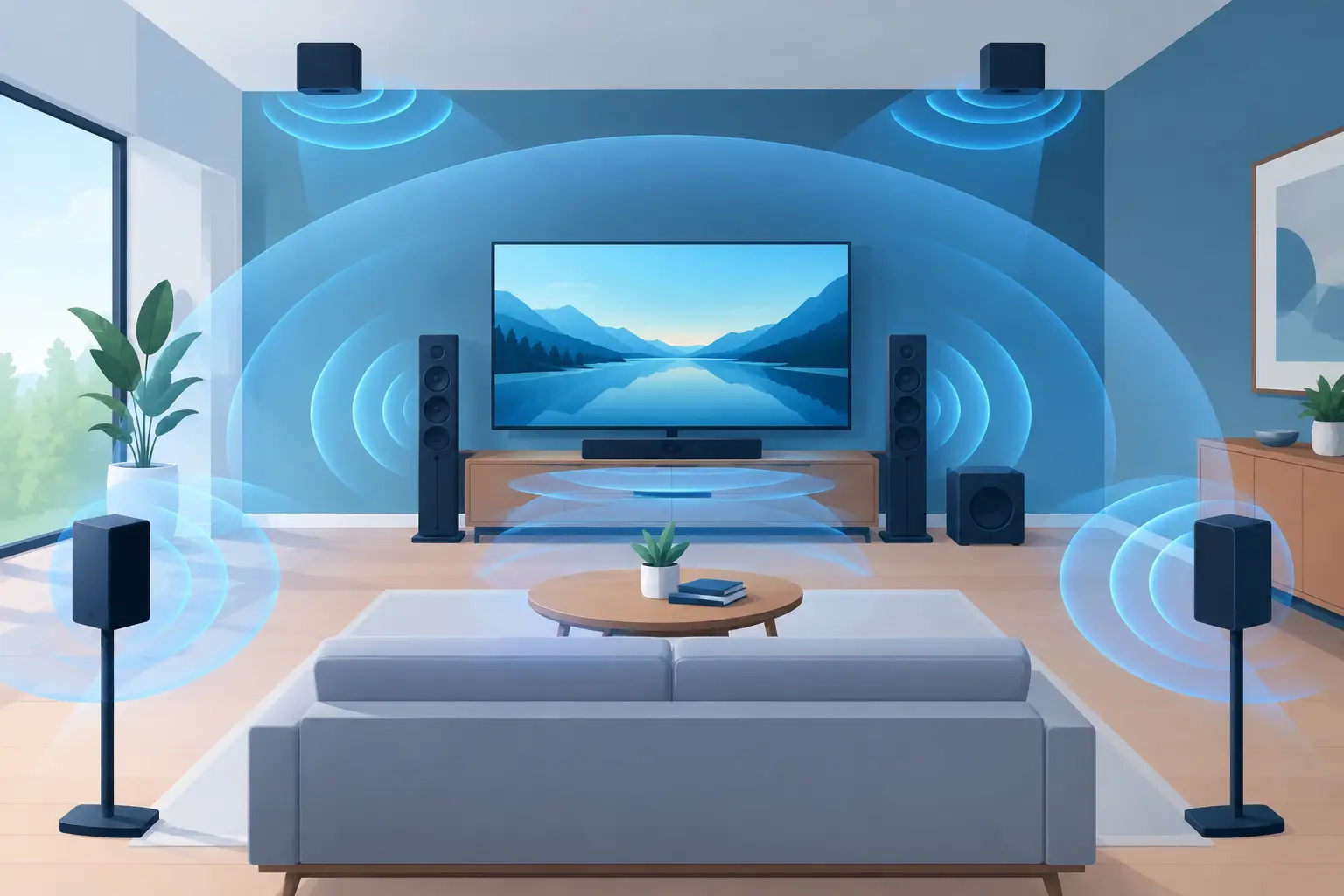
A virtual surround setting can make a room feel wider, taller, and more active. It can also make vocals drift, bass disappear, and every cymbal sound like it is coming from the same corner. The difference is setup. If you want to know how to tune virtual surround, start with the physical room and your connected devices before touching the effect slider.
Virtual surround is most convincing when it supports a clear speaker layout. It is less effective when it tries to compensate for devices placed randomly on a desk, sofa, or kitchen counter. Treat every phone, tablet, and computer as a position in a system. Then tune the processing around that layout.
Start With the Room, Not the Effect
Look at where people will actually listen. A small bedroom, open living room, and outdoor patio all need different settings. Virtual surround creates a sense of width and movement by adjusting phase, timing, frequency balance, and channel relationships. It cannot move sound through a wall, fix a device buried behind a pillow, or make a tiny phone speaker produce true sub-bass.
Place your primary left and right devices first. Keep them roughly the same distance from the main listening position, with their speakers facing into the room. If you have a tablet or laptop available, use it as a center device for vocals, dialogue, or the main musical focus. Put a device assigned to bass near a wall or low surface, but do not expect a phone speaker to replace a real subwoofer.
Avoid placing every device at the front of the room. That creates a louder stereo image, not surround. Move secondary devices to the sides or slightly behind the listening position. Even a two- to four-foot change in placement can produce a more useful result than increasing the virtual surround intensity.
Build a Simple Channel Map
Start with a layout you can hear clearly. For most rooms, use left, center, right, and one or two surround positions. A five-device arrangement is enough to make the effect obvious without turning setup into troubleshooting.
Assign the strongest, clearest devices to the front channels. Use older phones or smaller speakers for side and rear ambience. Rear channels do not need to be loud. Their job is to add space, motion, and environmental detail without pulling attention away from the track.
In MUSIXQUARE, name each connected device before you begin. Labels such as Front Left, Center Tablet, Rear Right, and Bass Phone make level adjustments faster when several people join the same session by QR code.
Set a Clean Baseline Before You Tune Virtual Surround
Turn virtual surround off first. Play a familiar track with a centered vocal, steady bass, and percussion that moves across the stereo field. Set every device to a comfortable volume, then balance channels so the front left and right feel even.
Bring up the center channel only until vocals and spoken words become stable. If the center is too loud, the mix collapses into a narrow line in front of you. If it is too quiet, dialogue can wander and lead vocals may feel distant.
Next, raise the side and rear devices slowly. Stop when you notice the room opening up. If you can point to a rear device every time it plays, it is probably too loud. Surround channels should be present enough to create depth but quiet enough that the front image still leads.
Check synchronization before applying any spatial effect. A small timing mismatch between devices can make drums sound doubled or can blur the attack of a vocal. Use the platform's delay and sync controls to align devices, especially when mixing different phone models, tablets, and computers. Listen to a snare hit or hand clap. It should sound like one event, not several close echoes.
Adjust Width in Small Steps
Now enable virtual surround at a low setting. Do not start at maximum. Strong processing can sound exciting for ten seconds, then become tiring because it exaggerates high frequencies, thins the center, or introduces phase effects that change when you move around the room.
Increase the setting one step at a time and listen for three things: whether the front image stays stable, whether side devices create believable space, and whether bass remains focused. A good setting makes the room feel larger while keeping the vocal easy to locate.
If the vocal becomes hollow or the kick drum loses impact, reduce the virtual surround level. This is often a phase issue. Virtual surround works by changing how channels interact, and too much processing can cause parts of the mix to partially cancel each other at your listening position.
The best setting depends on your source material. Movies, live recordings, ambient electronic music, and games often benefit from more width. Dense pop, podcasts, and vocal-forward tracks usually need less. There is no single percentage that works for every playlist.
Use EQ to Protect Clarity
Virtual surround can make upper mids and treble feel more pronounced. If hi-hats, S sounds, or guitar edges become sharp, lower the high-frequency range slightly instead of turning down every channel. Small changes are enough.
Keep the center channel especially clean. Reduce muddiness in the low-mid range if vocals sound boxy, then add a modest amount of clarity only if words are still hard to understand. Do not boost every band to create detail. That usually makes several small speakers compete for the same space.
For bass, use virtual bass carefully. It can add perceived weight when your connected devices cannot reproduce low frequencies, but too much may make the rhythm feel loose. Try a moderate setting, then compare it with the effect off. Keep the version that gives the kick and bass line definition, not just extra rumble.
Test From More Than One Seat
A virtual surround setup is not finished when it sounds good in one exact spot. Walk a few steps left and right. Sit on the couch, stand near the back of the room, and listen from where guests are likely to be. Processing that feels huge in the center may become uneven near a side wall.
If one side dominates, first adjust device placement. Then make small level changes. Turning the surround effect higher is rarely the right correction for an unbalanced room.
For a party, favor stability over precision. Use moderate surround width, clear front channels, and rear devices at lower levels. People will move around, talk, and stand close to individual devices. A restrained spatial setting holds together better than an aggressive one.
For a movie night or focused listening session, tune from the main seat. You can use more precise channel levels and a slightly stronger effect because listeners are likely to stay in a defined area. For games, prioritize dialogue and directional cues, keeping the center and front channels clear before adding extra ambience.
Know When to Use Less Processing
Virtual surround is a tool, not a permanent improvement switch. Turn it down for mono recordings, voice calls, or tracks that already have a wide and heavily processed stereo mix. In these cases, the effect may smear the image instead of expanding it.
Also reduce it when your devices are clustered close together. If the left, right, and center speakers are all within a few feet of each other, physical separation is limited. A lower virtual surround setting will often sound more natural than forcing width that the layout cannot support.
Save your best setup as a repeatable starting point: device positions, channel assignments, approximate levels, sync values, and surround intensity. The next session will start faster, and you can make changes based on the room rather than rebuilding from zero.
A convincing surround field is not about making every device louder. Place each device with a job, synchronize it, and make one small adjustment at a time. When the mix stays clear while the room feels larger, stop there.