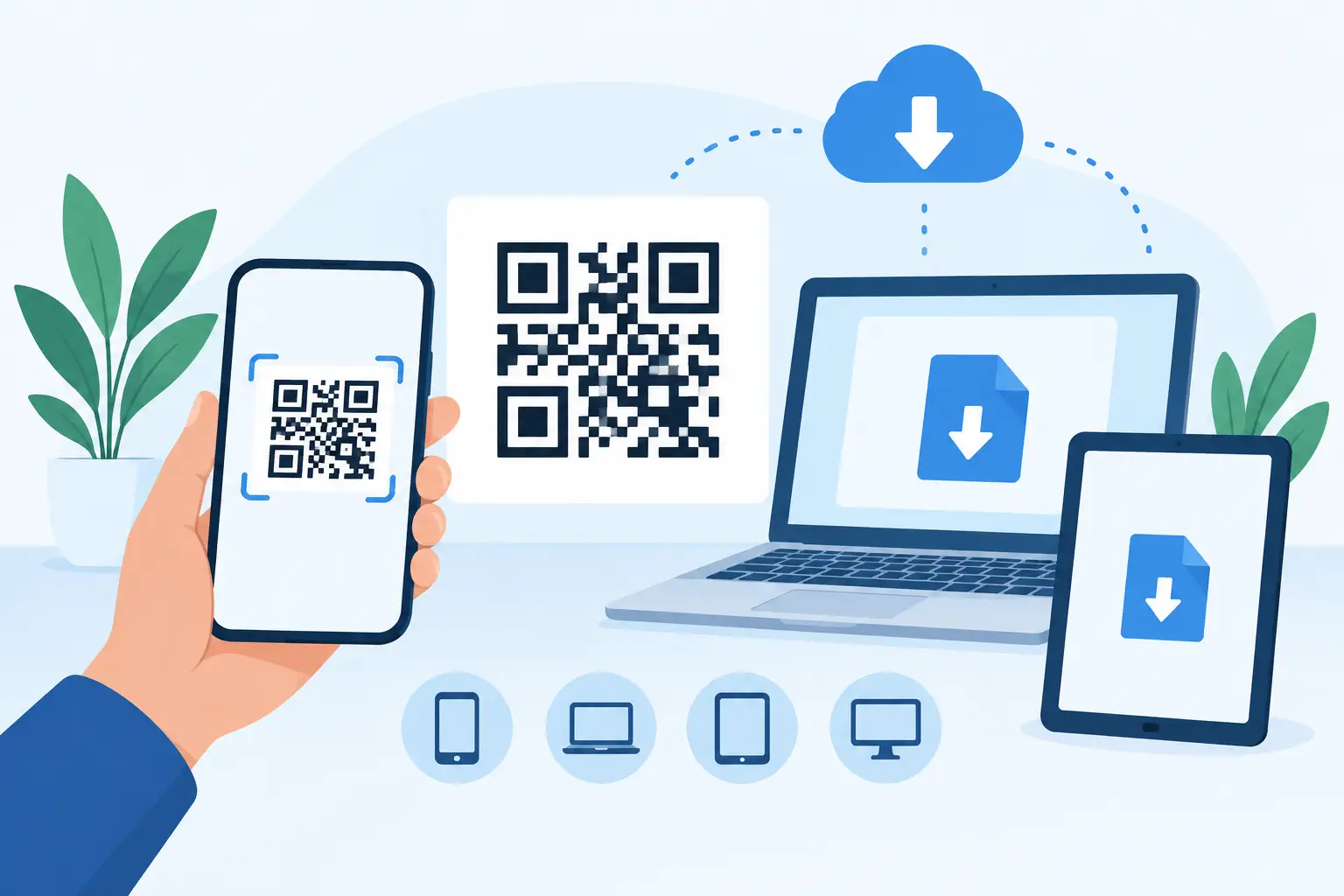
A QR code should get people into the sound, not into an app-store detour. For a multi-device listening session, QR download requirements are mostly about browser access, network stability, and device readiness. The code is simply the fastest route to a shared session. Scan it, open the session page, and turn the device you already own into part of the audio system.
That distinction matters when you are connecting a living room, studio corner, classroom, or party space with phones, tablets, and laptops. A QR code can be scanned in seconds, but synchronized playback still depends on what each device can do after it joins.
QR Download Requirements for a Shared Audio Session
In most browser-based audio setups, scanning a QR code does not require downloading a separate mobile app. The guest device needs a camera or QR scanner, a supported and current web browser, and a working connection to the same session environment as the host. If the session is protected, the guest also needs the room password.
The practical requirement is not the QR image itself. It is the page behind it. A device must be able to open that page, stay connected, and play audio through its selected output. That could be its built-in speaker, wired headphones, a connected speaker, or an external audio interface, depending on the device and use case.
Start by creating the session on the host device. Display the QR code where guests can scan it, then ask each person to confirm that the correct room name appears before joining. This avoids the common problem of connecting to an old tab, a different room, or a previously saved page.
What Each Device Needs Before Joining
A modern smartphone, tablet, or desktop computer is usually enough. The deciding factor is less about the model and more about whether the device can run a current browser reliably while handling audio. Older devices can still be useful as rear, side, or ambient channels, but expect less battery life and less consistent performance under load.
A current browser
Use the latest available version of Chrome, Safari, Edge, or another major browser supported by the device. Browser updates improve audio handling, permission controls, and network compatibility. If a guest sees a blank page, cannot start playback, or is repeatedly disconnected, update the browser before changing the entire setup.
Mobile browsers can behave differently from desktop browsers. On some phones, audio cannot start until the user taps a control on the page. This is a normal mobile permission rule designed to prevent unwanted sound. Ask each guest to tap Join, Play, or the equivalent session control after scanning.
Camera access or a QR scanner
Most current phone cameras recognize QR codes directly. Open the camera, point it at the code, and tap the session notification. If the default camera does not recognize the code, use the device's built-in code scanner or a trusted scanner already installed on the device.
A laptop without a camera does not need one if the guest has another way to open the session address. The QR code is an entry method, not a requirement for audio participation. This is useful for desktop devices placed around a room as dedicated left, right, center, or low-frequency channels.
Network access that stays consistent
Every device needs internet or local network access appropriate to the session. For best results, connect participating devices to the same reliable Wi-Fi network. A mixed setup can work, but a phone switching between Wi-Fi and cellular data during playback can introduce delay, dropouts, or a full disconnect.
Avoid guest networks that isolate devices from one another, captive portals that require repeated sign-in, and weak Wi-Fi at the edges of the space. If you are setting up for an event, test the farthest device location before people arrive. A perfect connection near the router says very little about a tablet in the back corner.
Enough power for the full session
Audio playback, screen activity, Wi-Fi, and browser processing use more power than basic messaging. Charge every device before joining. For a longer session, keep phones and tablets connected to power where possible.
Battery-saving mode can reduce background activity and network performance on some devices. It is useful when a device is only waiting in the room, but it may interfere with reliable playback. If a channel keeps falling behind or disconnecting, disable aggressive battery saving for the duration of the session.
Permissions That Affect QR-Based Joining
Scanning the code is only the first permission step. Browsers and operating systems may also request access to audio playback, notifications, local network features, or media controls. The exact prompt depends on the device and browser.
Do not approve permissions blindly. Grant only what the session needs, and review the browser's site settings if a device cannot play sound. The most frequent issue is simple: the device is joined, but its browser tab is muted, its media volume is at zero, or audio is routed to a Bluetooth headset that is no longer in the room.
Before assigning a device to a channel, play a short test sound. Confirm the output location, raise the media volume, and check that no other app is holding exclusive control of the audio path. This takes less than a minute and prevents a lot of searching once the room is full.
Set Up Devices for Better Synchronization
QR access gets devices into the room. Placement and tuning make them sound like one system.
Give each device a clear role. A phone near the couch can serve as a left channel, a tablet near the TV can cover the center, and a laptop across the room can add right-side width. If you have a larger speaker connected to one device, reserve it for bass or the main channel rather than asking a small phone speaker to do work it cannot physically deliver.
Distance matters. Devices placed too close together can make the mix feel narrow and cluttered. Spread them through the room, then make small adjustments to level, delay, and channel assignment. A few feet of movement often changes the listening experience more than a dramatic EQ setting.
MUSIXQUARE is designed for this type of setup: join a session from the browser, name each device, assign its function, and tune the sound from the session controls. Use reverb, frequency adjustment, clarity, warmth, virtual surround, or virtual bass with restraint. These controls can improve a thin or uneven setup, but they cannot replace stable connectivity or correct speaker placement.
Common QR Join Problems and Fast Fixes
If the QR code will not scan, increase screen brightness on the host device, clean the guest camera lens, and avoid reflections on the display. If the code scans but the page does not open, check whether the guest is connected to Wi-Fi and whether a browser restriction or captive portal is blocking access.
If a device joins but has no sound, start with volume and output routing. Check the browser tab, the device media volume, Bluetooth connections, and any wired adapter. Then tap the page's playback control again, especially on mobile devices that require a user action to enable sound.
If one channel is late, crackling, or repeatedly reconnecting, move it closer to the router, close heavy background apps, and keep the browser tab active. Network quality is usually the first variable to investigate. A powerful new phone on unstable Wi-Fi will perform worse than an older phone with a clean, consistent connection.
For large groups, do not wait until everyone arrives to test. Join the devices you plan to use, label them, assign channels, and play a reference track at the expected volume. Then scan the QR code with one additional guest device. This reveals whether the setup can handle real participation rather than only the host's ideal conditions.
Build for Fast Entry, Then Fine-Tune
The best QR experience is almost invisible: guests scan, enter the password if needed, tap to enable sound, and become part of the room. Keep the host screen visible, use a readable QR code, and make the session name clear enough that nobody has to ask which room to choose.
Once everyone is connected, stop treating spare devices like spare devices. Move them, name them, assign their channels, and listen from the place where people will actually be standing or sitting. The QR code starts the session. The decisions you make after joining create the space.