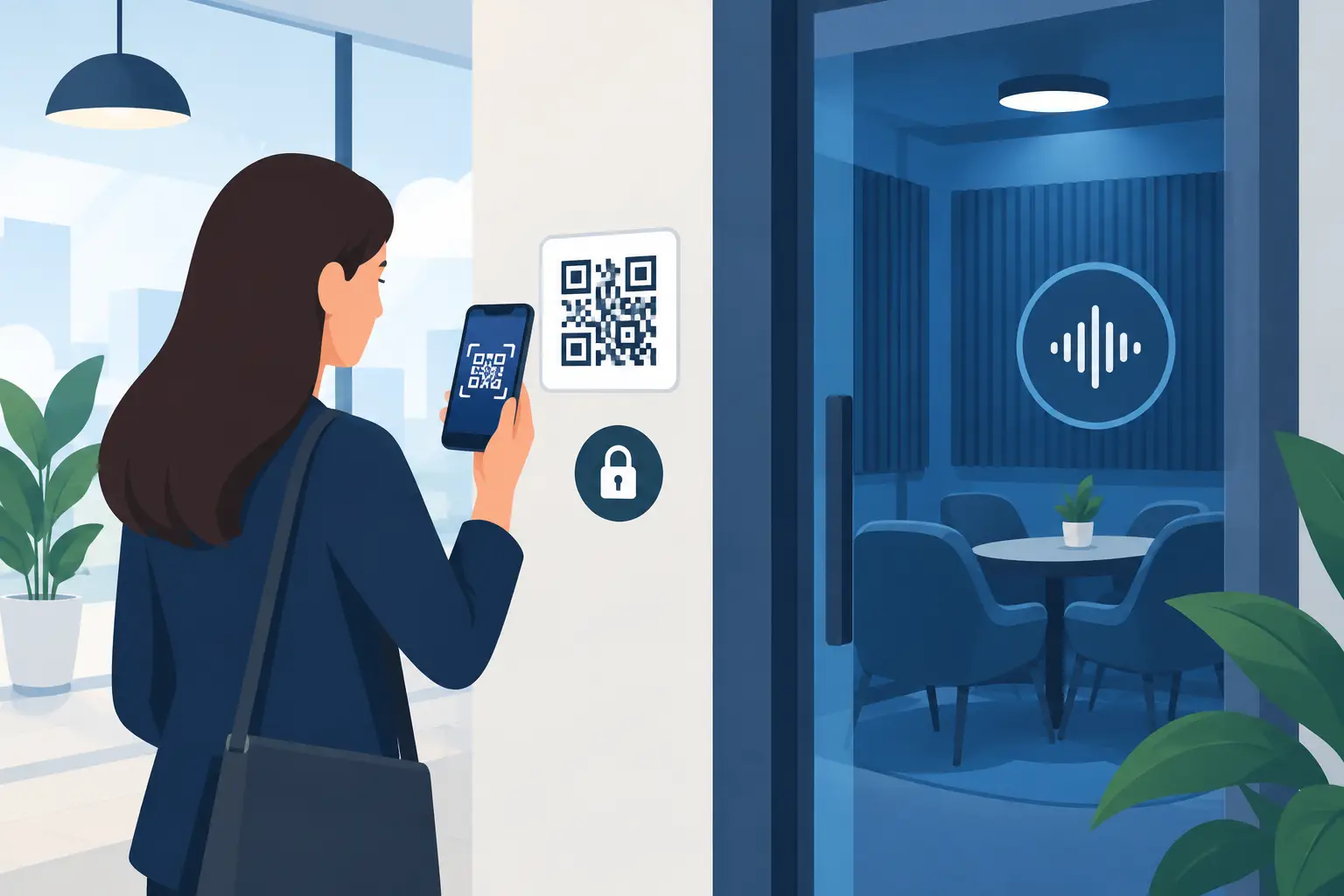
A QR code should make joining an audio room faster, not give up control of the room. Secure QR audio room access works when guests can connect in seconds while the host still decides who enters, how many devices participate, and what each device is allowed to do.
That balance matters when one session can turn a few phones, tablets, and laptops into a distributed sound system. A public QR code is convenient at a house party, campus event, studio session, or pop-up installation. It can also become an open invitation for unplanned devices if the room is not configured with basic guardrails.
The goal is not to make participation difficult. The goal is to make the session intentional.
Start with a room that has a clear owner
Create the session from the host device first. The host should be the person responsible for playback, device assignments, and the final sound balance. In a multi-device audio setup, that role is more than administrative. The host may be deciding whether a tablet handles the center channel, an old phone supports bass, or two laptops create a wider left-right image.
Use a device name that makes the host easy to identify. “Jordan Host” is more useful than a generic browser or phone model name, especially when several screens are active. Before anyone joins, confirm that the host device has stable network access and that the audio source is playing correctly.
This simple order prevents a common problem: guests join a room before the core audio setup is ready, then everyone starts troubleshooting at once. Start the session first. Test one output device. Then invite the room.
Use secure QR audio room access in layers
A QR code handles the first step: it sends people to the correct room without asking them to type a long room name or search for a session. It is a fast entry method, not a complete security setting by itself.
Add a room password when the people in the room are not all known to one another, when the QR code may be visible beyond the intended group, or when the session remains open for more than a few minutes. Share the password verbally, display it only when guests arrive, or send it through the event’s existing private channel.
For a small living-room session with close friends, a QR code and a simple password may be enough. For a workshop, gallery installation, student event, or creator collaboration, use tighter controls: limit the room size, keep the host in charge of playback, and avoid displaying the QR code outside the entry point.
Security is proportional. A code projected on a wall in a private apartment has a different risk level than the same code printed on signage in a public venue. Configure for the space you actually have.
Keep the QR code where participation begins
Place the code at the check-in point, near the listening area, or on the host’s screen while people are joining. Remove it after the room reaches its intended size. This is a practical control that often matters more than adding complexity to the guest experience.
Avoid posting an active room code to a public social feed or leaving it on a screen visible from outside the event area. Anyone who scans it can attempt to enter, and even a password-protected room can collect unnecessary join requests or failed attempts.
If late arrivals are expected, show the QR code again at a defined time rather than leaving it active and visible all night.
Set a device limit before the room gets noisy
Every connected device is part of the audio system and part of the session’s management load. More devices can create a bigger, more spatial result, but they also increase the chance of weak Wi-Fi, mismatched volume levels, battery issues, and confusion over which screen controls what.
Set the maximum number of devices based on the intended sound design. A focused stereo setup may only need two or three outputs. A larger room may use additional devices for center presence, rear ambience, or bass support. Do not add devices just because they are available.
A device limit also protects the experience from accidental crowding. At a party, people may scan the QR code simply because it is there. If the room has space for six output devices, set the limit around that number and leave capacity only for the devices you actually plan to use.
Ask guests who are not contributing an output device to listen through the room rather than joining from every phone. Participation does not always require another connection.
Separate joining from controlling
The most useful rule for shared audio is simple: guests can join, but not every guest needs control. Playback changes, sound tuning, device roles, and synchronization settings should remain with the host unless there is a specific reason to share them.
This is especially relevant when you are tuning several devices as separate channels. A minor volume adjustment on one phone can shift the entire image. Changing delay settings can make a synced room sound scattered. Enabling a sound effect without checking the other outputs can change the mix more than expected.
Use host and guest roles to keep the session stable. Guests should be able to connect quickly and follow the experience. The host should be able to rename a device, assign its role, adjust volume, and remove a device that is causing problems.
For collaborative sessions, assign a second trusted person to manage devices in the room. One person can handle music or source audio while the other checks placement, battery level, and channel assignments. This works well for small events where the host cannot be at the control screen and across the room at the same time.
Treat device names as part of access control
Rename devices as they join. This sounds minor, but it makes room management much faster. “Kitchen Tablet - Left,” “Sofa Phone - Right,” and “Desk Laptop - Host” tell you what is connected and where it is playing.
Generic names create mistakes. If four devices all appear as “iPhone,” removing the wrong one becomes likely. Clear names help the host identify unexpected connections too. If a device appears that no one recognizes, remove it immediately and change the room password if necessary.
Naming also supports better audio decisions. When you are adjusting virtual surround, reverb, clarity, warmth, or frequency bands, you need to know which physical speaker-like device you are affecting. A room map in the device names is faster than guessing.
Build a quick join routine for guests
A good access flow should take less than a minute. Tell guests what to do in one short sequence: scan the QR code, enter the password if prompted, confirm the device name, and wait for the host to assign the device.
Do not ask every person to experiment with settings on arrival. Keep setup centralized until the system is stable. Once the room is playing, you can invite selected guests to test a position, move a device, or compare sound modes.
MUSIXQUARE is designed for this kind of browser-based participation: use existing devices, join a session quickly, and configure each device as a useful part of the sound field rather than treating every screen as a separate music player.
Check the network before blaming the audio
QR access and audio synchronization both depend on the network environment. If guests cannot join or devices drift out of sync, check whether everyone is on the intended Wi-Fi network, whether the signal reaches the farthest device, and whether a crowded network is handling too much traffic.
For a small setup, place devices within reliable Wi-Fi range and avoid unnecessary background downloads. For a larger space, test the farthest output position before guests arrive. A speaker-like device at the edge of the room can sound great, but only if it stays connected.
Use synchronization controls carefully. Lower latency can feel more immediate, but aggressive settings may be less forgiving on weaker networks. There is no universal best setting. Test the room, listen from the main seating area, and adjust for stability before chasing the smallest possible delay.
Know when to close and reset the room
At the end of a session, remove unused devices and close the room rather than leaving it available indefinitely. If the same group will return later, create a new password or start a fresh session. A new code gives you a clean participant list and avoids confusion over old devices reconnecting.
For recurring gatherings, keep a simple host checklist: verify the host device, test one output, set the device limit, display the QR code only during entry, and confirm names as devices connect. The process stays quick because it is repeatable.
The best room access setup is almost invisible to guests. They scan, join, and hear the result. Behind that simple moment, the host has made deliberate choices about who connects, what each device does, and how the room sounds.