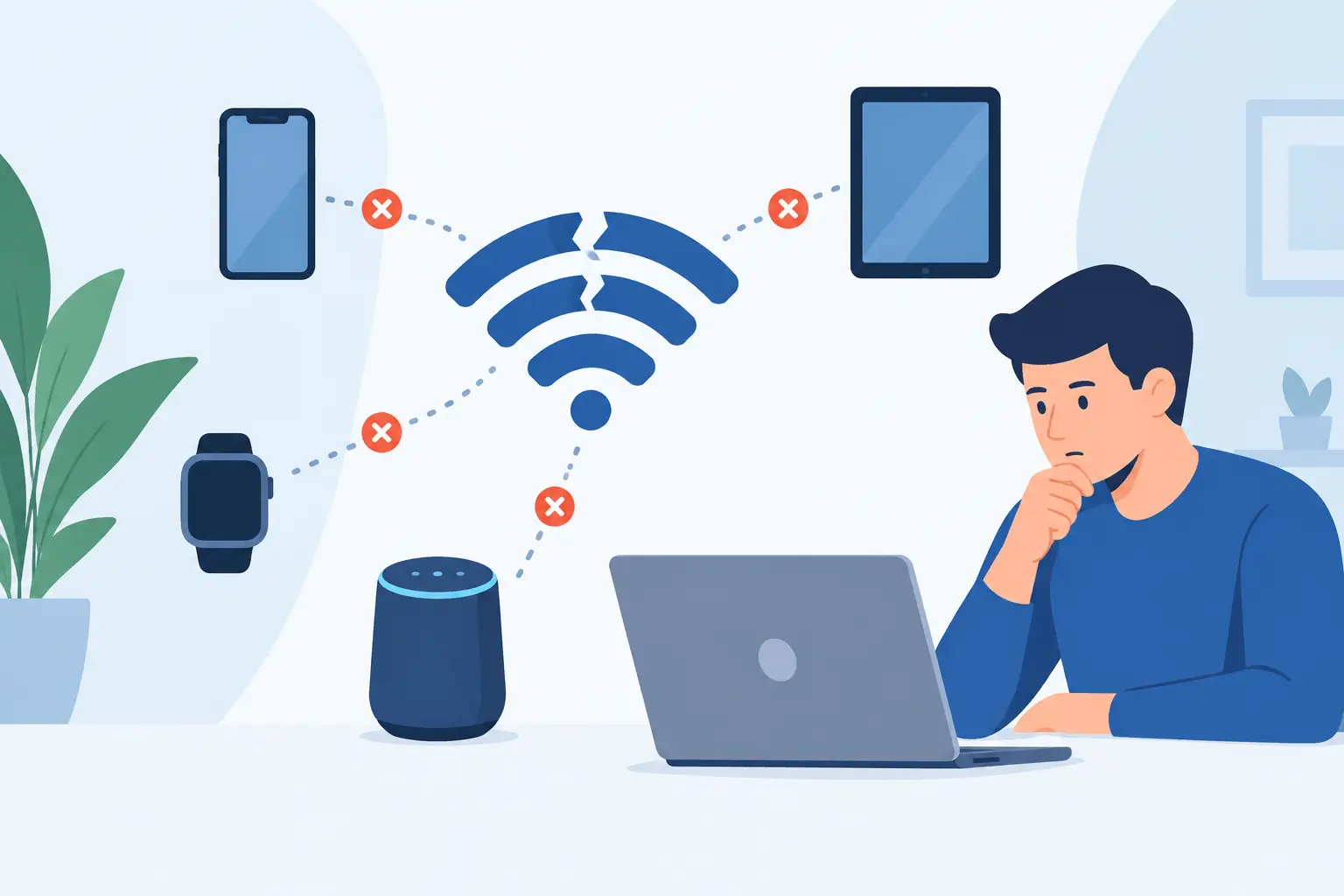
A phone drops out just as the beat lands. A tablet reconnects but plays a fraction of a second late. A laptop stays in the session while its audio stops. Why do devices lose connection when they are sitting in the same room, on the same network, doing what should be a simple job?
Because a multi-device setup is not one connection. It is several systems working at once: Wi-Fi signal, network routing, browser activity, device power controls, audio processing, and session timing. One weak point can make a device appear disconnected even when it still shows as connected.
The fastest fix is not always “restart everything.” First identify what failed: network access, session membership, audio playback, or synchronization. Then adjust the layer causing the problem.
Why Do Devices Lose Connection in a Shared Session?
In a shared audio session, every device needs a reliable path to the same network and enough processing headroom to receive, decode, and play audio on time. That makes the setup more sensitive than streaming music to a single speaker.
A device can lose connection for obvious reasons, such as moving out of Wi-Fi range. But the more frustrating failures are usually intermittent. The signal is technically available, yet the connection is too unstable for real-time audio. Walls, people moving through the room, nearby networks, and distance from the router can all reduce usable signal quality.
Network congestion is another common cause. A home network may handle email, scrolling, and casual video without trouble, then struggle when multiple phones and tablets need frequent, time-sensitive data at the same time. A crowded apartment building, party venue, dorm, or café can add even more wireless interference.
The key distinction is this: a device does not need to be fully offline to perform poorly. Small delays, dropped packets, or repeated reconnection attempts can be enough to interrupt a synchronized audio experience.
Start With the Network, Not the Volume Control
If several devices drop at once, look at the router or internet connection first. If only one device fails, start with that device’s Wi-Fi signal, battery mode, and browser state.
Place the router as centrally as possible for the room you are using. Avoid hiding it behind a TV, inside a cabinet, or near dense metal objects. If your space has both 2.4 GHz and 5 GHz Wi-Fi bands, the right choice depends on the layout. A 5 GHz connection is often faster and less crowded at close range, while 2.4 GHz can travel farther through walls. For a group gathered in one room near the router, 5 GHz is often the better starting point. For devices spread across several rooms, test both bands rather than assuming one will win.
Guest Wi-Fi can also create problems. Many guest networks isolate connected devices from one another for security. That is useful in public spaces, but it can interfere with services that need devices to discover or communicate within the same local session. Put every participating device on the same non-isolated network when possible.
Avoid switching networks after joining. Phones often jump from weak Wi-Fi to cellular data, or from one saved network to another, without making the change obvious. Turn off cellular data temporarily if a phone keeps leaving Wi-Fi, and forget unnecessary nearby networks if automatic switching is aggressive.
Browser and Power Settings Can Quietly End a Session
A browser-based audio tool depends on the browser staying active. Mobile operating systems are designed to save battery, and they can reduce network activity when a tab is backgrounded, the screen locks, or power-saving mode turns on.
Keep the session tab open and active during playback. Do not assume that switching to a camera app, social feed, or game will leave audio networking untouched. On some phones, especially when battery saver is enabled, background limits can delay updates or suspend the browser completely.
Before starting a long session, charge participating devices or connect them to power. Then disable Low Power Mode, Battery Saver, or similar restrictions for the duration of the session. This is especially useful for older phones, devices with worn batteries, and tablets that have been sitting unused for months.
Browser choice matters too. Update the browser on every device before troubleshooting deeper. An older browser version may handle audio permissions, memory use, or real-time connections less consistently. If one device repeatedly fails while others remain stable, test it in another modern browser. That single comparison can tell you whether the issue is device-specific or network-wide.
Connection Is Not the Same as Audio Sync
A device may remain connected to the room but still sound wrong. That is a synchronization issue, not necessarily a lost connection.
Different devices have different speaker hardware, audio drivers, Bluetooth behavior, and processing delay. A newer tablet may play quickly while an older phone adds extra latency. Bluetooth headphones and Bluetooth speakers introduce their own delay, which can vary by model and codec. For a multi-device speaker layout, built-in speakers or wired output are usually more predictable than mixing in Bluetooth devices.
Start with fewer devices. Get two devices stable first, positioned as left and right channels or simply playing together. Once that works, add another device and check timing again. This isolates the point where the system becomes stressed or where a particular device introduces a noticeable delay.
If your platform provides delay or synchronization controls, adjust one device at a time. Do not change every setting at once. Choose a reference device, listen for which speaker is early or late, and make small corrections. A few milliseconds can change the image of a stereo pair; larger differences become obvious as echo.
MUSIXQUARE is designed for this practical approach: start a session, join by QR code, assign each device a role, and tune the timing without buying a dedicated speaker system. The goal is not to make every device identical. It is to make their differences controllable.
Reduce the Load Before You Add More Devices
More devices can create a bigger sound field, but each additional device adds another Wi-Fi client, browser process, battery profile, and speaker delay. There is a point where adding one more old phone makes the overall experience worse rather than better.
When a session becomes unstable, reduce variables before changing advanced settings. Close video streaming, cloud backups, game downloads, and large file transfers on the same network. Ask participants not to mirror their screens or use bandwidth-heavy apps while connected. If possible, pause smart TV streaming during the session.
Also inspect the physical layout. Devices placed behind furniture, inside bags, or near microwave ovens and wireless hubs may have weaker or noisier connections. Spread speakers for sound, but do not spread them so far that edge devices barely reach Wi-Fi. A practical setup is often better than a dramatic one: keep devices within reliable range first, then refine placement for the room.
For larger groups, manage expectations. A compact living room with four current phones may perform better than a wide event space with ten mixed-age devices. The best device count depends on router quality, room size, network traffic, and the performance of the slowest device in the group.
A Fast Recovery Sequence When a Device Drops
When one device disconnects, avoid rebuilding the entire room immediately. Recover it in a controlled order:
- Confirm that the device is still on the same Wi-Fi network as the host.
- Bring the device closer to the router and reopen the active session tab.
- Disable battery-saving mode and keep the screen awake while testing.
- Rejoin the session with the QR code or room details, then verify its channel assignment.
- Check its audio timing before turning the volume back up.
If the same device drops again, test it beside the router with no other apps open. If it still fails there, the problem is likely the device, browser, or its local settings. If it becomes stable, the original problem was probably range or interference.
Build for Stability, Then Shape the Sound
A strong multi-device audio setup begins with boring details: one reliable network, charged devices, current browsers, active tabs, and realistic placement. Once those are stable, the creative options become useful. Move a phone to the left side of the room, place a tablet near the center, use a laptop for more presence, then adjust level, warmth, clarity, or virtual surround to fit the space.
Treat connection stability as part of the sound design. A smaller system that stays locked together will feel wider, cleaner, and more intentional than a larger setup that keeps breaking apart. Get the session stable first. Then let the room become the speaker system.