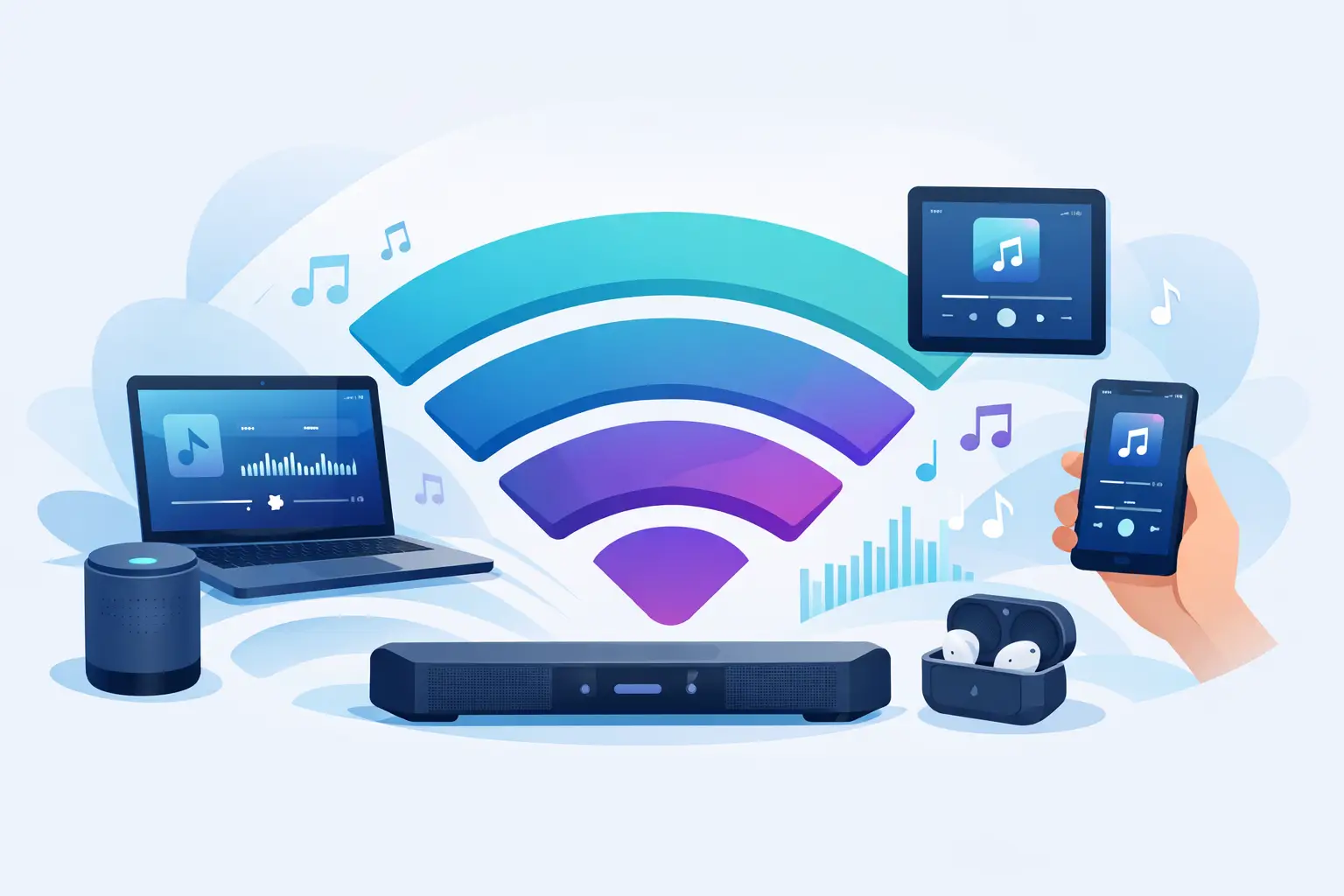
A room full of old phones, a tablet, and a laptop can become a surprisingly capable audio setup. But when one device sounds late, drops out, or loses connection, the issue is often not the speaker itself. It is WiFi band playback: the relationship between your wireless network’s frequency band, signal quality, and how reliably multiple devices receive and play audio together.
For a shared audio session, WiFi is more than a way to get online. It is the transport layer behind device discovery, session control, timing information, and often the audio stream itself. Choose the wrong band for the room, and even a carefully arranged multi-device system can feel unstable. Choose the right one, and existing phones, tablets, and computers can behave more like a coordinated speaker network.
What WiFi Band Playback Actually Means
Most home routers broadcast on two main frequency bands: 2.4 GHz and 5 GHz. Some newer routers also offer 6 GHz. Each band has a different balance of range, wall penetration, speed, and interference resistance. WiFi band playback is the practical decision of which band should carry a synchronized audio session.
The fastest band is not automatically the best choice. Multi-device audio does not only depend on raw download speed. It depends on consistent delivery. Every participating device needs a stable enough connection to receive data on time, maintain its place in the session, and avoid interruptions caused by weak signal or network congestion.
Think of it this way: a single phone playing music can tolerate a brief network fluctuation because it may have buffered audio ahead. A room of devices playing together exposes small timing problems much faster. If one device has a poor connection, the entire sound field can feel less focused.
Choose 2.4 GHz When Coverage Matters
The 2.4 GHz band reaches farther than 5 GHz and usually passes through walls more effectively. That makes it useful when devices are spread across several rooms, placed at opposite ends of a large space, or located behind furniture and interior walls.
Use 2.4 GHz first when your priority is connection reach. A house party with devices in the kitchen, living room, hallway, and patio may perform better on a strong 2.4 GHz signal than on a fast 5 GHz signal that fades near the edges of the space.
The trade-off is congestion. 2.4 GHz has fewer available channels and is used by many common devices, including older smart home gear, wireless accessories, and neighboring networks. In apartments or dense urban areas, that band can become crowded. If playback stutters despite a strong signal, congestion may be the reason.
A practical test is simple: start the session on 2.4 GHz, place devices where they will actually be used, and monitor them for several minutes. Do not judge performance while all devices are sitting next to the router. The useful test begins after you place the left, right, center, or ambient devices around the room.
Choose 5 GHz When Devices Are Nearby
The 5 GHz band typically offers more capacity and less interference than 2.4 GHz. It is often the better option for a living room, studio, classroom, or creative workspace where the router is close and participating devices have a clear signal path.
This is the band to try when you want to connect several modern phones, tablets, and laptops within one primary room. It can handle busy local traffic more comfortably, especially if the same network also serves video calls, gaming, cloud backups, or other high-bandwidth activity.
Its limitation is range. Walls, floors, large appliances, and distance affect 5 GHz more aggressively. A device may appear connected while still receiving an inconsistent signal. That is enough to create delay adjustments, audio dropouts, or a guest device that repeatedly leaves the session.
For 5 GHz WiFi band playback, keep participant devices reasonably close to the access point. If the room is large, move the router or use a mesh node near the listening area rather than forcing every device to work through multiple walls.
What About 6 GHz?
If your router and devices support 6 GHz, it can provide a cleaner wireless environment with less interference from older network equipment. It is promising for dense, modern setups, but it is not a universal answer. Compatibility is still more limited, and its short range makes placement even more important than with 5 GHz.
Use 6 GHz for a compact setup with compatible devices near the router. For mixed-device groups, 5 GHz or 2.4 GHz will often be the more practical common network.
Keep Every Device on the Same Network Path
A synchronized session works best when all participating devices use the same local WiFi network and, ideally, the same band. A phone on 2.4 GHz and a laptop on 5 GHz may still communicate through a dual-band router, but their network path can be less predictable depending on router settings, band steering, guest network isolation, and mesh configuration.
Start with one clear rule: connect the host and all guest devices to the same named network. Avoid guest WiFi unless you know it allows local device communication. Many guest networks isolate connected devices from one another by design, which can prevent discovery or session participation.
If your router combines 2.4 GHz and 5 GHz under one network name, it may automatically move devices between bands. This is convenient for regular browsing, but it can complicate troubleshooting. When a session behaves inconsistently, temporarily separate the bands in router settings if possible. Name them clearly, such as `Home-2.4` and `Home-5G`, then connect all audio devices to the band you want to test.
This removes guesswork. You will know whether the session is operating on a coverage-first network or a capacity-first network.
Set Up the Room Before You Tune the Sound
Do not treat network setup as an afterthought. Build the connection first, then shape the sound.
Start the session from the host device. Connect each guest through the QR code, confirm that every device appears in the room, and rename devices according to their physical position. A name such as “Left Window” is more useful than “iPhone 2” when you begin balancing the room.
Next, assign each device a role. Use a tablet as a center channel, place phones on the left and right for width, or position an older phone near a wall to add reflected ambience. A larger device with better speakers may handle the main channel, while smaller devices fill in detail closer to the listener.
Once devices are placed, adjust synchronization before applying effects. Delay settings are for correcting real physical and network differences, not for creating a dramatic echo. Make small changes, listen from the main seating area, and give the session a moment to settle after each adjustment.
MUSIXQUARE is designed for this kind of practical setup: join from a browser, bring devices into one session, assign channel behavior, and make control decisions from the actual room rather than from a fixed speaker layout.
Reduce the Traffic Competing With Playback
A stable WiFi band is only part of the system. Network activity changes throughout the day, and a busy connection can affect playback even when signal strength looks good.
Before an important session, pause large downloads, cloud sync tasks, software updates, and 4K streaming on the same network. If a smart TV is downloading a game update or several people are uploading video at once, audio devices may have less consistent access to the router.
Also check device power settings. Phones in low-power mode may reduce background network activity or change performance behavior. Keep participating devices charged, prevent them from sleeping during the session, and avoid switching between WiFi and cellular data.
Router placement matters too. Keep it out in the open when possible. A router hidden behind a TV, inside a cabinet, or next to dense electronics has a harder job reaching every device. Raising it slightly and moving it away from metal surfaces can make more difference than repeatedly changing software settings.
Troubleshoot in the Right Order
When audio is out of sync, resist the urge to adjust every control at once. Isolate the problem.
First, check whether the affected device has weaker WiFi than the others. Move it closer to the router and test again. If it improves, you have a coverage issue, not an audio configuration issue.
Second, move every device to the same band. If the session stabilizes, band steering or cross-band behavior was likely adding variability. Third, reduce network traffic and restart the session. A clean reconnection often resolves temporary discovery or routing problems.
Only after those checks should you fine-tune per-device delay. If one device consistently sounds early or late even with a strong, stable connection, use small delay adjustments to align it with the group. Make one change at a time and listen to a track with sharp percussion or clear vocals. Those details reveal timing differences faster than soft ambient music.
The best WiFi band for playback is the one that stays stable where the devices actually live. Test the room, keep the network path simple, and let your existing screens and speakers earn a second job as a coordinated sound system.